

Tags vergeben
Define tags yourself or set them automatically
Tags can be used in a wide variety of ways in Billbee; discover some examples of how to use them now:
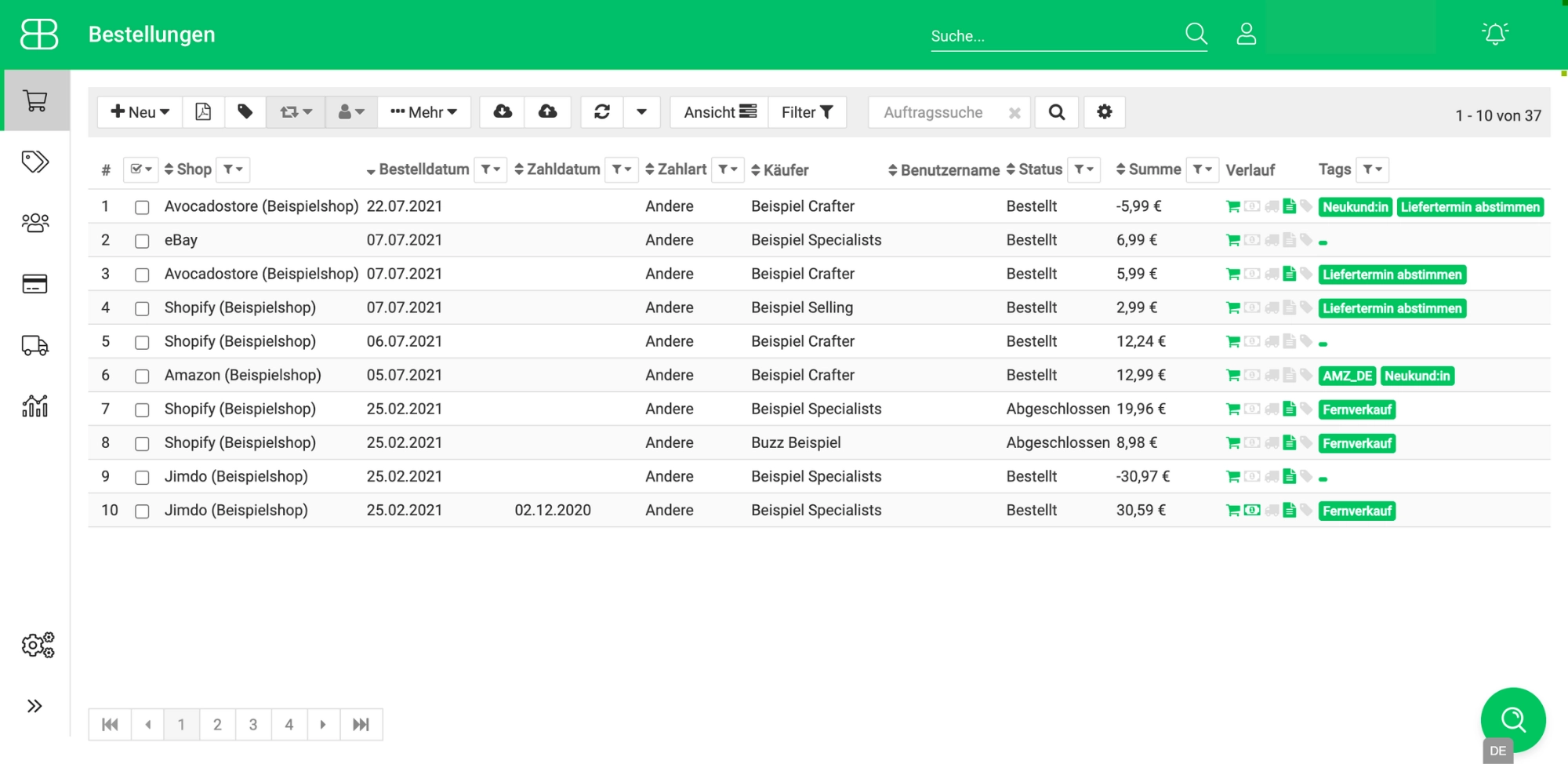
Label orders with tags
Tags can be used in different scenarios: either you define the tags yourself, or they are automatically added to your order during certain processes.
When it comes to custom tags, there are no limits to your creativity, as you can define the tag text exactly as you wish. We have collected two practical examples for you:
- Sometimes, delivery dates for orders need to be coordinated with a freight forwarder, and for these orders, the tag "Coordinate delivery date" is applied. (Pro tip: You can even automate this process so that the tag is applied automatically if a specific item is included in the order, for example, because it requires freight shipping.)
- Do you always include extra information or a nice gift in the package for new customers? Then simply apply the "New customer" tag to these orders. (Pro tip: Use the {Tags} placeholder to print the tag on your order documents so that any of your employees can see this information at a glance!)
Some tags, on the other hand, are set automatically by Billbee. These include, among others:
- Distance selling: If an order is a distance sale, you participate in the OSS scheme, and you have enabled the option to have a tag set automatically, Billbee will apply the "Distance selling" tag. You do not need to define this tag separately; it can be set automatically by enabling the option in your settings.
- Amazon: If you sell on Amazon and have connected your Amazon shop to your Billbee account, you can enable an option in your Billbee shop settings to have the marketplace from which the order was imported saved as a tag. This is particularly advisable if you sell not only on the German Amazon marketplace but also in other countries.
Try Billbee Today, Completely Risk-Free