

Dispatch notification
Your customers place orders in your online shop and eagerly await their delivery. To prevent questions about the expected delivery date from arising in the first place, you can use Billbee to automatically send them a shipping notification. This way, they know exactly when their package will arrive.
Why it pays to automate your shipping communication
Fewer inquiries and happier customers: You notify your customers automatically upon shipment and send them the tracking number directly. This prevents questions and improves the customer experience.
Professional appearance – even with high order volumes: No matter how busy things get, you send emails in your name, with your layout, and always at the right time. This ensures you maintain a professional appearance across all channels.
Save time and avoid errors: You set up once which status change triggers which message. Billbee handles the rest automatically in the background. This saves valuable time in your daily routine and prevents manual errors.

How can I automate shipping notifications in Billbee?
If you are just getting started with Billbee, you can automate your shipping communication in three simple steps:
- Connect sales channels and shipping providers: First, set up your Billbee account and connect all your sales channels and shipping service providers. Thanks to the pre-built interfaces, this is done in just a few minutes.
- Draft custom text and adjust the layout: Write your shipping notification exactly as you wish. You can also use placeholders to make the message even more personal. To ensure the shipping notification matches your branding, you can also customize the layout.
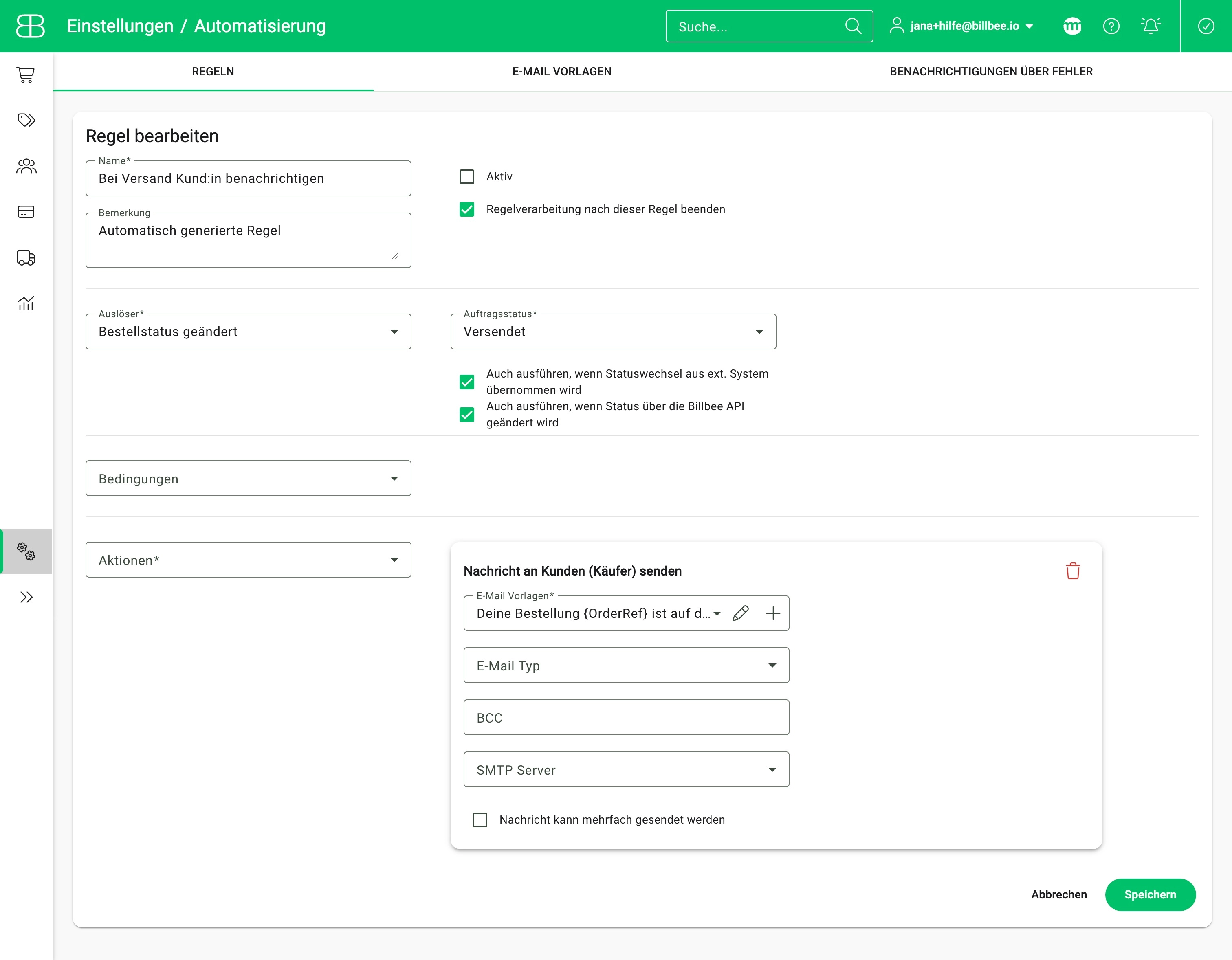
- Define a rule: To have Billbee send your shipping notifications automatically from now on, create a rule for it. With this rule, you define that the message is sent immediately as soon as the status in Billbee changes to "Shipped."
Frequently Asked Questions about Shipping Notifications
What should be included in a shipping notification?
A good shipping notification starts with a clear subject line: include the order or invoice number right away so your customers can immediately identify the email in their inbox—and find it quickly if they need to. In the body of the email, it is best to address your customers by name.
To ensure no one loses track—especially during the holiday season when inboxes are flooded with shipping notifications—it is best to list the contents of the order. This way, your customers know exactly what is in each package. You should also include the essential shipping details: delivery address, shipping carrier, estimated delivery time, and, of course, the tracking link for shipment monitoring.
End the message with a sincere thank you, information on how your customers can reach you if they have any issues, and helpful links—for example, to your website or your FAQs.
You can find more on this in our blog: Shipping confirmation for your online shop (including template)
Can I customize the layout of the shipping notification?
Yes, you can create an email template in Billbee and customize them to match your branding.
Can I personalize the shipping notification?
Yes, simply use the placeholders in Billbee. When the message is sent, they are automatically filled with the actual order data—such as your customer's name, the tracking number, or the tracking link. This makes every automated message sound as if you had written it personally.